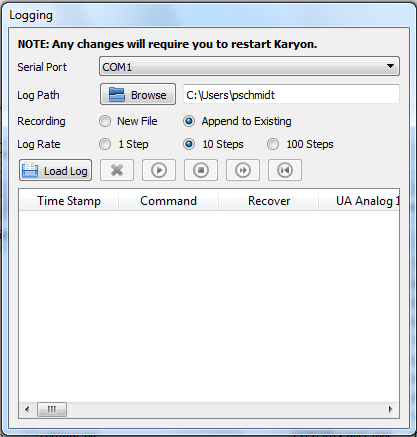
One of the first things you will need to do when running Karyon is to access the Logging plugin. The configuration tools involve Serial Port, Log Path, Recording type, and Log Rate.
Serial Port. If Karyon deems you are disconnected from Cerebrum, you will have to at the very least, specify the communication port used to communicate with Cerebrum. As with all settings applied to the Logging plugin, selecting a new serial port will not apply until you restart Karyon. If you are running Karyon directly on Cerebrum, you will not need to change this value.
Log Path. This specifies the folder where logs will be recorded, whenever you press the Record button in the Karyon toolbar. You may either browse for a folder or enter one manually.
Recording. If you choose “New File”, every time you press the Record button in the Karyon toolbar, a new file will be created with a time stamp. If you select “Append to Existing”, a single “karyon-log.tsv” file will be created and continuously written to each time you press the record button.
Log Rate. Determines the amount of steps to wait until recording data. “1 Step” will record every step, “10 step” will record once every 10 steps, and “100 step” will record once every 100 steps. Slowing down the recording rate is ideal if you intend to record for extended periods of time and don’t care about minor details that might be excluded.
Previously logged data may be loaded and played back as a macro. The bottom half of the Logging plugin is focused strictly on previewing previously recorded logs.
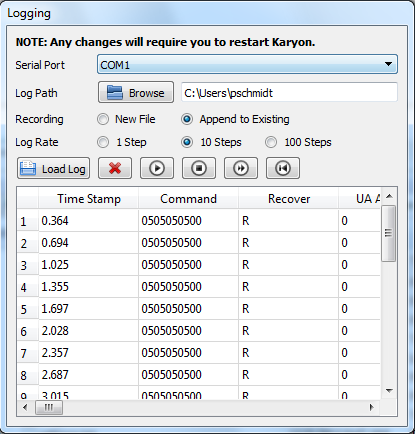
Load Log. Used to open a previously loaded log into the log display table below. Opening an already recording log will result in showing the last recorded step.
Delete Log (X button). Deletes the current log and clears the log display table below. Note: there will not be a confirmation for deletion!
Play Log (Triangle button). Play back the “Command” column of the recorded log. Plays at the same rate at which the commands were recorded. This is particularly useful if you have a sequence of commands you would like your robot to perform, without the need to program any autonomy. Note that this does not guarantee identical results, as your Mobility Augments may trigger recovery mode at different times than when noted in the log itself.
Fast Forward (double-triangle button). Ignores the time stamp and plays back each recorded frame for every step. By default, this is off.
Loop Playback (line and reverse triangle button). If toggled, this will bring the log back to frame 1 whenever the playback reaches the last frame.
Log Display Table. Contains the contents of a loaded log file. Each row is a separately recorded frame.